
Guides
How to Stop App Tracking on iPhone, Plus Location, Health and Safari
Stop app tracking on iPhone in Settings > Privacy & Security > Tracking, then lock down location, photos, Health, Motion & Fitness, Apple ads and Safari.

Listen to this article
How to Stop App Tracking on iPhone, Plus Location, Health and Safari
In this article
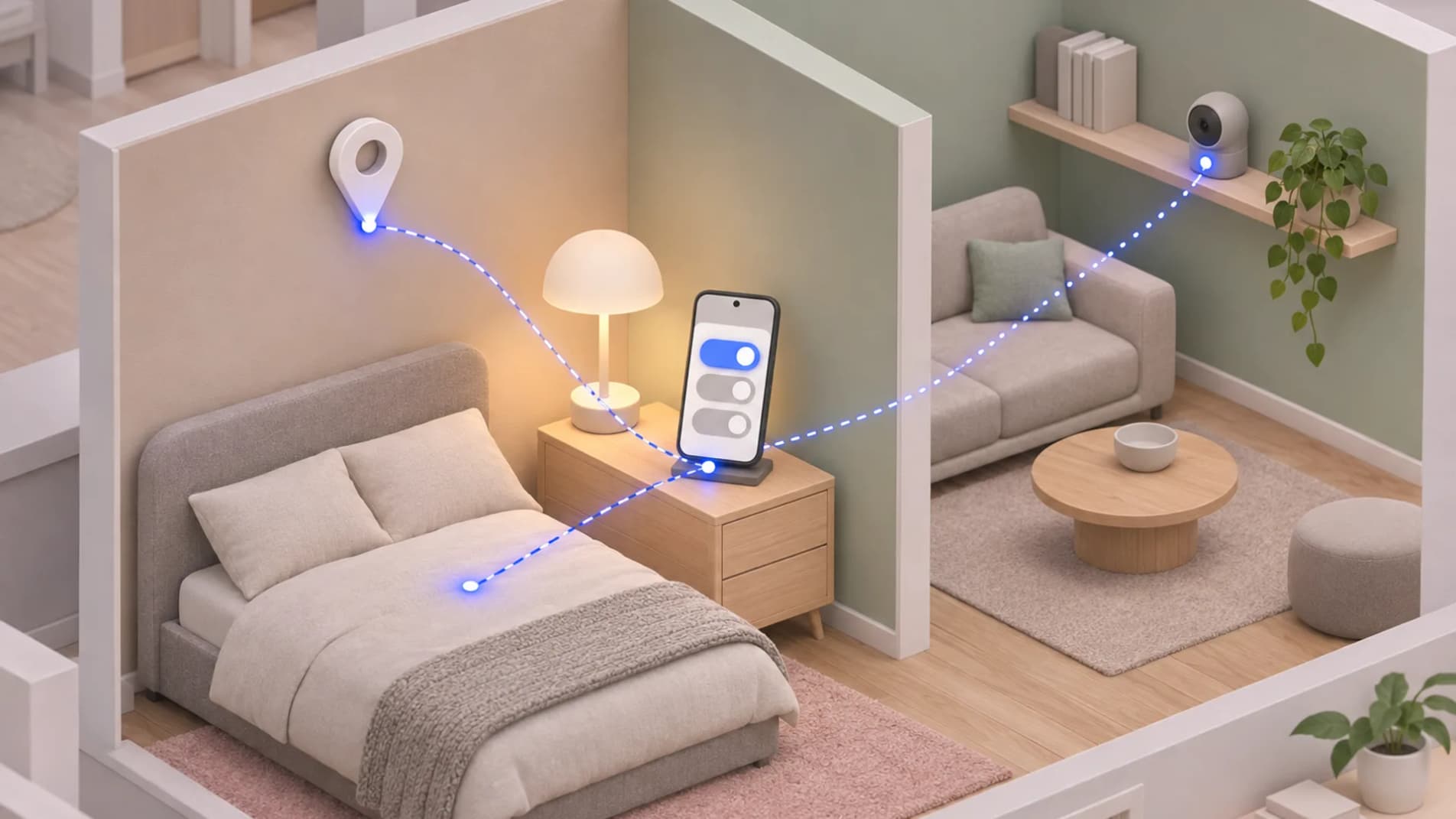
The "Ask App Not to Track" button on iPhone pop-ups covers one kind of tracking. It stops an app from pairing what it has on you with what other companies gather in their own apps and on their sites to aim ads at you, and from passing your details on to data brokers. Your location, your Health records and your web browsing each sit behind their own switches.
So start in Settings > Privacy & Security > Tracking, where you turn off "Allow Apps to Request to Track" and ask every app you approved earlier to stop. Then work through location, Find My, Health, fitness, Apple's own ads and Safari one at a time. Here's where each control lives.
Stop app tracking on iPhone
Apps have needed your permission for App Tracking Transparency tracking since iOS 14.5, and the Tracking screen is where you take back the yeses and stop the asking.
- Open Settings, tap "Privacy & Security", then tap "Tracking".
- Flip "Allow Apps to Request to Track", the first switch on that screen, to off.
- Pick the option that asks all the apps you previously allowed to stop tracking you.
- Scroll through the list of apps underneath and switch off any that still have permission.
With "Allow Apps to Request to Track" off, apps stop asking and every new request counts as a no. A no cuts the app off from your phone's advertising ID, and the app may not track you another way, such as by your email address.
Saying no doesn't cost you any app features.
When Tracking is greyed out
If you can't switch "Allow Apps to Request to Track" on, possible reasons include:
- a child account, or a signed-in Apple Account belonging to someone whose birth year puts them under 18 (the age threshold for child accounts differs across countries and regions)
- a school or work account, or a phone your employer or school manages with tracking limits, or an Apple Account less than 3 days old
Apps requesting tracking permission can't read the advertising identifier while the switch is greyed out and off. The permission prompt returns with an app's next tracking request if a change to your account or device makes the setting available and you turn it on.
Limit location without disabling everything
Location Services has a setting for each app and each system service, so you don't have to switch it off for the whole phone.
- Go to Settings > "Privacy & Security" > "Location Services".
- Find the app in the list.
- Tap it and choose an option:
- "Never" blocks location access.
- "Ask Next Time Or When I Share" makes the app ask you again the next time it wants your location.
- "While Using the App" works only while the app, or something it shows, is on your screen.
- "Always" lets the app read your location in the background.
- Switch off "Precise Location" on the same screen for any app that only needs a rough idea of where you are.
To disable the service across apps, switch off "Location Services" and confirm "Turn Off". Apps then lose that source of location data whether you're using them or they've moved into the background; some Apple and third-party apps lose features or stop working. During an emergency call, your iPhone may still provide its location to help responders.
Stop sharing in Find My
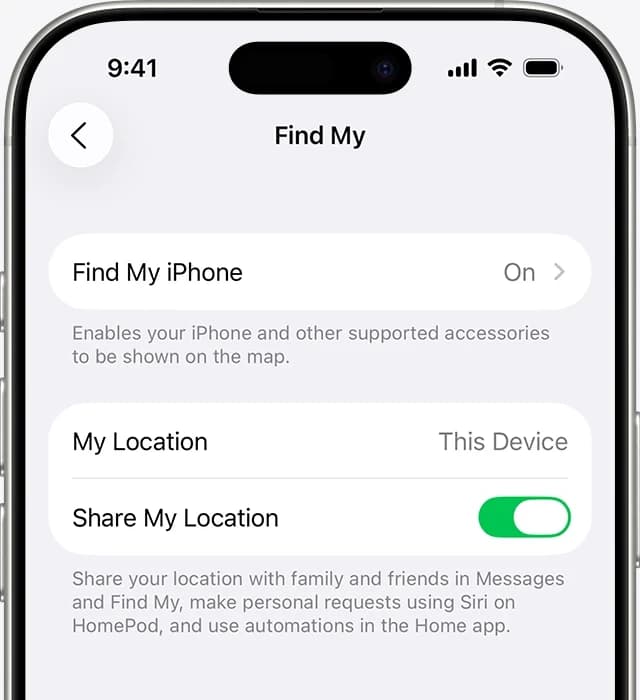
The people you share with in Find My don't have to go one by one. In the Find My app, tap "Me" and turn off "Share My Location", and your location disappears for everyone at once.
To cut off just one person:
- Tap "People", then tap their name.
- Tap "Stop Sharing My Location", then confirm with "Stop Sharing Location".
If you'd rather go quiet for a while, tap the "More" button on that person's screen and pick "Hide Location" instead. Back on the "Me" tab, turning off "Allow Friend Requests" stops new location sharing requests from arriving, and the same sharing controls also sit in Settings > [your name] > "Find My".
Stop photos sharing location
The Camera app uses Location Services like any other app, so it gets its own line in that list. Set Camera to "Never" in Settings > "Privacy & Security" > "Location Services" and it stops reading your location for new photos.
Photos you already took need a different fix. Before you send one, open "Options" in the Share menu and turn off "Location".
When any app, Camera included, is using Location Services, you'll see a small arrow at the top of the screen or in Control Center, a quick way to spot an app you forgot about.
Check Health and fitness separately
Health and Motion & Fitness are two separate permission lists in Privacy & Security, so cutting an app off from one leaves its access to the other in place. An app only shows up in either list after it has asked for that data.
- Head to Settings > "Privacy & Security" > "Health".
- Select an app and tap "Turn Off All".
- Back in "Privacy & Security", open "Motion & Fitness".
- Flip off the switch next to each app you want to cut off.
Make Apple ads less personal
Apple runs its own ads in the App Store, Apple News and Stocks, and the switch for them sits apart from "Tracking". What you read and which publications you follow or subscribe to help shape ads in News and Stocks; your searches and downloads help shape App Store ads. HomeKit data, transactions through Apple Pay and data in the Health app play no part in Apple's ad targeting.
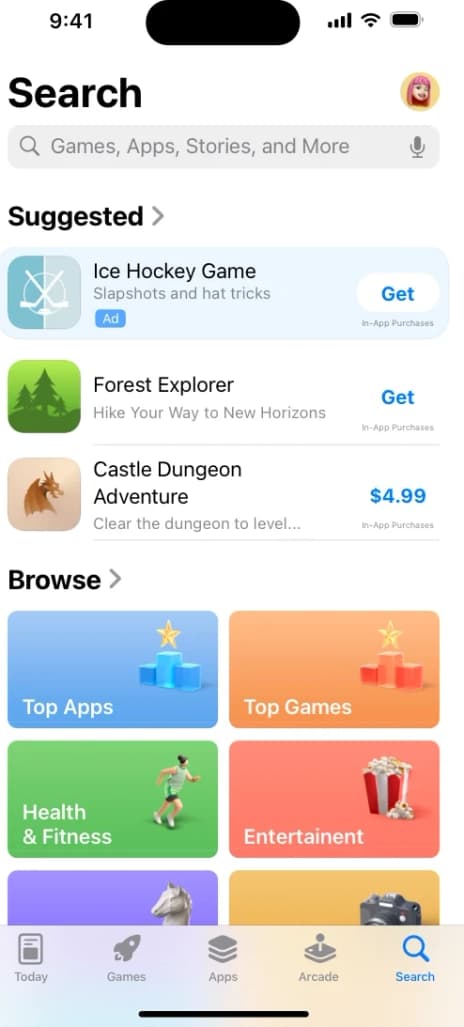
To turn personalization off, go to Settings > "Privacy & Security" > "Apple Advertising" and switch off "Personalized Ads".
That ends targeted Apple ads in those three apps, yet you may see just as many ads as before, only less personal ones. The switch covers Apple's ads only, so other apps' cross-company tracking stays under "Tracking".
Give Safari its own cleanup
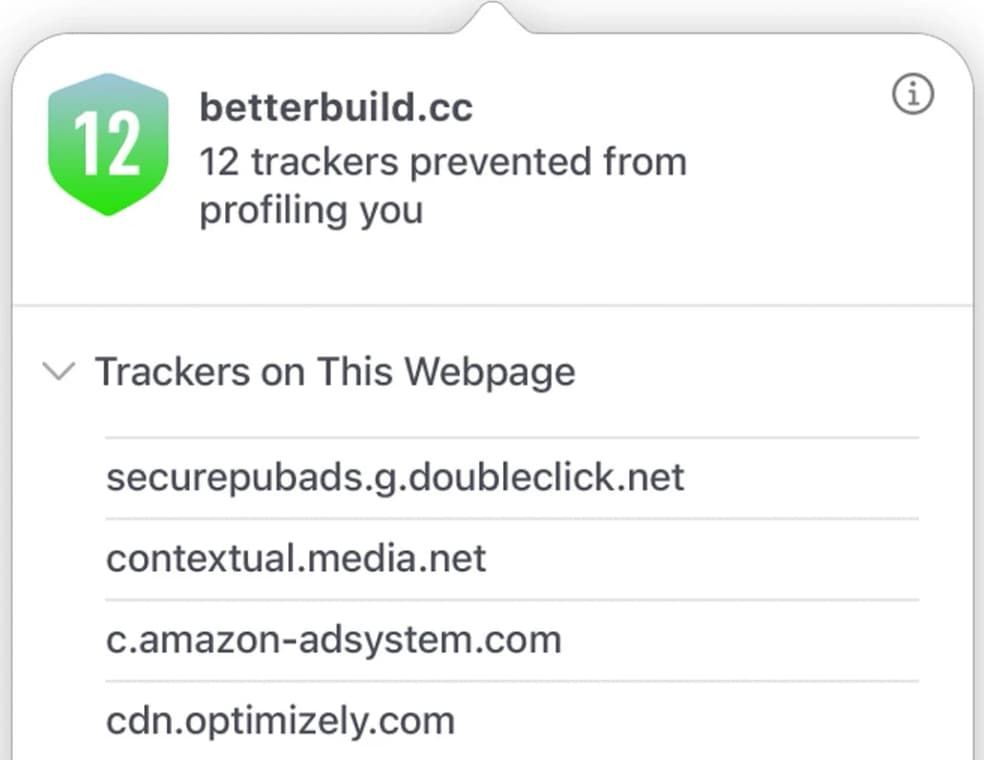
Safari keeps its own tracking controls in Settings > "Apps" > "Safari".
- Enable "Prevent Cross-Site Tracking" under "Privacy & Security".
- Open "Hide IP Address" in that section, then choose "From Trackers".
- Back on the main Safari settings screen, open "Advanced" > "Advanced Tracking and Fingerprinting Protection", then choose "All Browsing".
We'd pick "All Browsing" so Safari's advanced tracking and fingerprinting protection covers everything you browse.
Check App Privacy Report
Developers supply the information in App Store privacy labels. You'll find these labels on app product pages, describing some of the developer's privacy practices, including the collection and use of contacts, location and browsing history.
Control Center identifies apps that recently used your camera or microphone, and an indicator signals use as it happens. Apps need your permission to access either.
Once you enable App Privacy Report, you can review the domains your apps contacted in Settings, alongside a seven-day record of how frequently apps accessed your contacts, microphone, camera, photos and location.
Behind this story
Henrique Caiano covers artificial intelligence and the smart home for Chip-in.
All stories by Henrique Caiano
The sources behind this story
- Privacy - Control - AppleReporting · accessed
- Turn Location Services and GPS on or off on your iPhone, iPad, or iPod touch - Apple SupportReporting · accessed
- iPhone app tracking feature greyed out? Try this fix - ZDNETReporting · accessed
- How to Stop App Tracking on iPhone (2026 Guide) | Beebom GadgetsReporting · accessed
- Share your location in Find My on iPhone - Apple SupportReporting · accessed
- About privacy and Location Services in iOS, iPadOS, and watchOS - Apple SupportReporting · accessed
- If an app asks to track your activity - Apple SupportReporting · accessed
- Control app tracking permissions on iPhone - Apple Support (BH)Reporting · accessed
- Control app tracking permissions on iPhone - Apple Support (IS)Reporting · accessed