

Apps
How to Use ChatGPT Dictation Now That the 10-Minute Limit Is Gone
Use ChatGPT dictation without the old 10-minute cap once Live Dictation reaches you. Record, edit and send prompts, and manage your audio.
Listen to this article
How to Use ChatGPT Dictation Now That the 10-Minute Limit Is Gone
In this article0% · 4 min left
There's no limit-removal switch buried in ChatGPT's settings, and there's no paid tier to buy. OpenAI dropped the 10-minute recording cap as part of its new Live Dictation, and no upgrade or feature toggle stands between you and it on any plan. Good. You're no longer racing a clock to finish a long prompt.
For a long prompt you want to fix before it goes out, tap the microphone in ChatGPT's message box, not the Voice icon. Talk, clean up the text it writes, then send it. If Live Dictation hasn't shown up for you yet, update the app and give the rollout time to reach your account.
ChatGPT dictation, not Voice
ChatGPT gives you two ways to speak to it, and they're easy to mix up. The Voice icon sits in the bottom right and opens a spoken conversation: you pick from several voices and intelligence levels, cut in whenever you like, and ChatGPT talks back. OpenAI introduced its GPT‑Live voice models for ChatGPT Voice in July.
That mode is built for back-and-forth and for thinking out loud. Dictation is the microphone, and it does one job: it turns what you say into a prompt you read over, change and then send as text.
The difference shows up in the transcript. With dictation, you get to correct the text before sending your prompt; a Voice transcript can differ from your spoken words.
Record with the microphone
Live Dictation is available on phones, the web and the desktop app. On desktop, expect a dictation control for recording your prompt.
- Open ChatGPT on iOS, Android, the web or the desktop app.
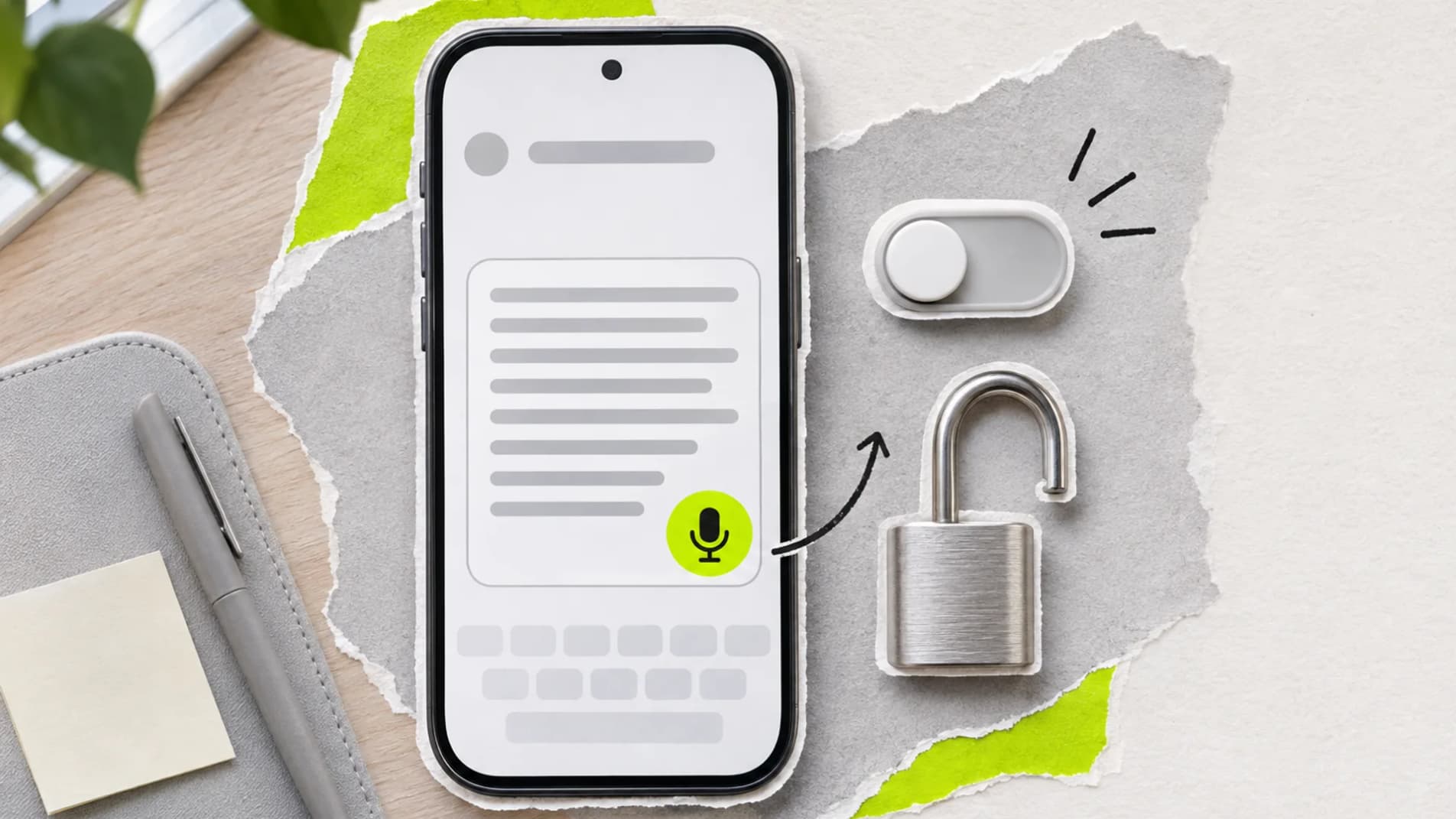
- Press the microphone icon in the message box. On the ChatGPT website, it's the dictation microphone inside the box where you type.
- Speak your prompt. With Live Dictation, the words turn into text while you're still talking.
The desktop app treats dictation the same way: your speech becomes prompt text, and that text becomes a user message only when you send it.
Show the live transcript
You'll spend less time waiting for transcription to finish with Live Dictation. The transcript takes shape during the recording, while you're still speaking.
Click or tap the waveform while you're recording to show the running text, and do it again to hide it (handy if seeing your own half-finished sentences throws you off).
Edit before you send
Your recorded audio goes to OpenAI's models for transcription, and what comes back is ordinary text sitting in the message box. You can rewrite any of it before it becomes a message.
So a misheard product name or a rambling first sentence gets fixed before ChatGPT starts answering a prompt it got wrong. For a ten-plus-minute brief, that edit pass is the reason to use dictation at all.
Missing it? Update first
Every ChatGPT plan, free included, is getting Live Dictation through a worldwide rollout covering the desktop app, the web, Android and iOS. A rollout reaches accounts at different times, and there's no setting that pulls it forward.
Keep the ChatGPT app updated and look again as the rollout moves along. So for some of you the answer is still to wait, which is annoying for a feature that costs nothing and needs no switch.
If ChatGPT stalls or stops responding, try refreshing the page or restarting the app. Other troubleshooting steps include checking status.openai.com for an ongoing incident and starting a new chat if the current one has run long.
Manage your audio data
Your recording doesn't vanish once you have the text. ChatGPT keeps dictation audio for as long as the chat stays in your history, and you asked for a text prompt, not an audio archive.
OpenAI may retain recordings for security or legal purposes, along with audio you'd shared for training that was already detached from your account. Otherwise, removing the chat starts a deletion window of up to 30 days for its audio.
If you use a consumer plan and chose to share audio to improve OpenAI's models, your dictation clips can be used for training. The data controls page in ChatGPT's settings has two switches for this, and "Improve the model for everyone" stops sharing entirely. If you don't want your recordings used for training, our call is to turn off "Include your audio recordings", the switch built for exactly that.
Behind this story
 GuySmart home and VR
Guy is our resident expert on smart home components and all things virtual reality.
All stories by Guy
Comments
Opens here
Read next
More stories
Tomorrow, made clearer.
Get the next briefing in your inbox.