
Guides
How to Use Android Split Screen Without Buying a Foldable
Run two apps at once on a regular Android phone: open Recents, tap the app icon, choose Split Screen, then resize, exit or fix a missing option.

Listen to this article
How to Use Android Split Screen Without Buying a Foldable
In this article
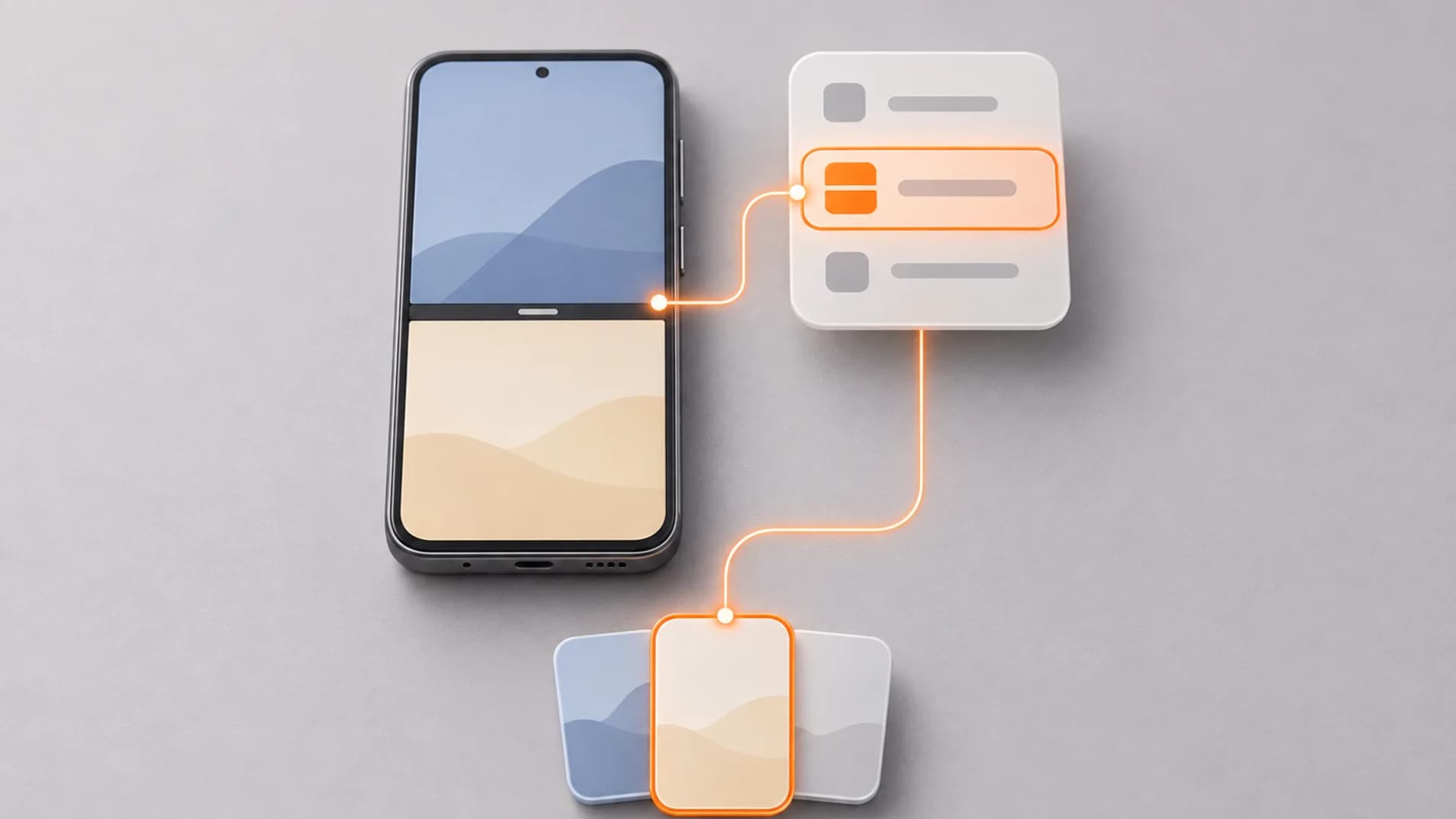
Two apps open, one thumb, and you're bouncing between them every few seconds. Keep the phone you have. A regular slab-style Android phone runs two apps at once in split screen, no foldable needed. Open Recents, tap the app's icon at the top of its preview, choose "Split Screen", then pick the second app.
The exact taps shift a little between phone makers and Android versions, so your menu might sit in a slightly different spot. If the option won't show up at all, our advice is to try a different app before you blame the phone, because some apps don't support split screen.
Android split screen, no foldable
Android has shown more than one app at a time since Android 7.0, through a system feature called multi-window. Its default form is split screen, which cuts the display down the middle, and it works with the phone held upright or turned sideways.
Most conventional Android phones limit split-screen view to two apps.
There's one hardware exception you'll want to know about. Android switches multi-window off by default on devices that declare themselves low on RAM, so a phone in that class might not offer split screen out of the box. And if your phone runs something older than Android 9.0, a few of the steps below might not work.
Open Recents, pick apps
Here's the route, in the order you'll tap through it:
- Open the first app you want in split screen.
- Open Recents. With gesture navigation, slide your finger upward from the screen's bottom edge, pause with it still touching the display, then lift it. With three-button navigation, tap "Recents".
- Find the first app's preview and tap its icon above it.
- Tap "Split Screen" in the menu.
- Choose your second app from Recents or from the app drawer.
The second app doesn't have to be open already, since the app drawer works for step 5 too.
On an Android tablet, Chrome has a shortcut of its own. Touch and hold a tab, drag it to the edge of the screen and drop it there, and Chrome opens that tab in a new window and puts the screen into split screen.
Resize it, then leave
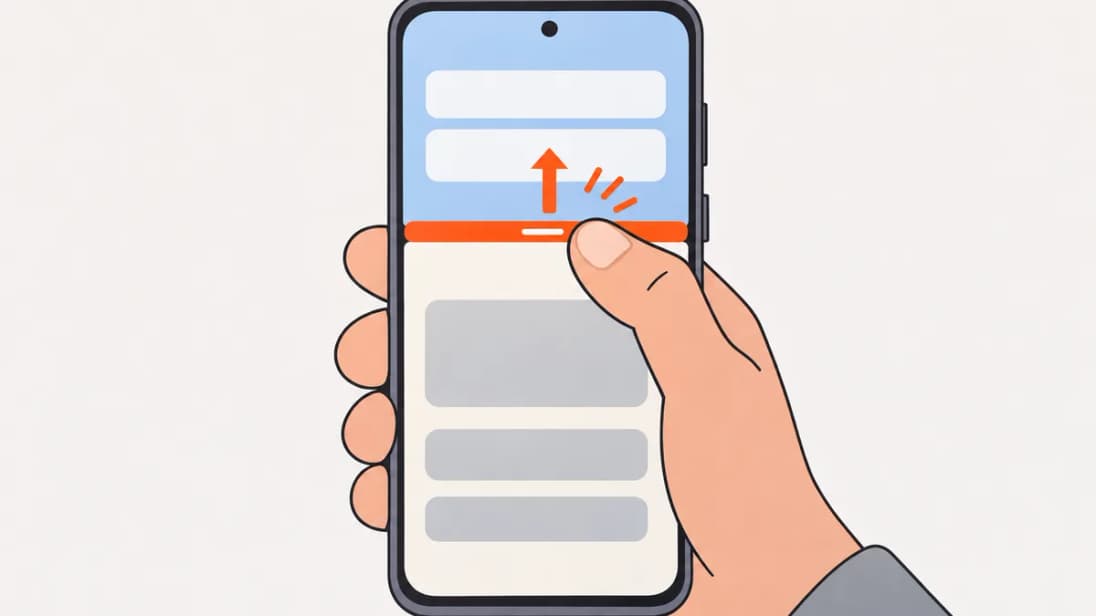
Give the app you're actually using more room by grabbing the divider between the two panes and dragging it. Hold the phone upright and the apps stack, so the line moves up and down; turn it sideways and it slides left and right.
When you're done, drag that divider to either outer edge of a stacked layout, top or bottom, and split screen closes.
When Split Screen disappears
Not every Android app supports split screen, and the ones that don't tend to hide it. Open the menu on an incompatible app and you'll find the option greyed out or gone entirely, so a missing option can be the app's fault before it's ever the phone's.
An app that currently lacks split-screen support might gain it in a newer release. Install available app updates through the Play Store.
If the option is still missing after that, restart your phone and check for a system software update.
Forcing apps isn't guaranteed
Apps that lack split-screen support might still open together if you enable "Force activities to be resizable". You'll first need to unlock "Developer options", Android's hidden menu of advanced settings.
- Open "Settings" and go to "About".
- Tap "Build Number" seven times.
- If the phone requests authentication, supply your PIN or password.
- Back in "Settings", tap "System", then "Developer options", and turn on "Force activities to be resizable".
And even the forced route fails on some apps. The toggle doesn't work every time, and Developer options holds plenty of other settings that might hurt your phone's performance or stability, so leave anything you don't recognize alone. When you've finished experimenting, go back to "System" > "Developer options" in Settings and switch "Developer options" off.
Is it the phone or the app?
Our call is to open a different app and try split screen again before you blame the phone, because an incompatible app greys out or hides "Split Screen" even on a phone that supports it.
To enable split screen, open your first app, enter Recents and use the app icon's menu to select "Split Screen", then select another app.
Behind this story
Nick is one of our fearless editors here at ChipIn, and as a photography hobbyist, he’s always on the lookout for new and clever ways to capture the moment.
All stories by Nick