

Artificial Intelligence
How to Run a Local LLM Privately on Your Own Computer
Run a local LLM with Atomic Chat: check memory, install the app, load a small quantized model, test it offline and keep cloud services off.


Listen to this article
How to Run a Local LLM Privately on Your Own Computer
In this article
Switch off your Wi-Fi, disconnect every other network, then send Atomic Chat a prompt it has never seen. If it still answers, the model is running on your own computer.
For this walkthrough, we're using Atomic Chat with a small quantized text model that leaves room in your memory. You install the app, download a model, load it and chat, and you leave its optional cloud services alone. An answer with the network gone proves the model works offline. The privacy of everything around it still rests on the app, your operating system and any tools you connect.
Below you'll find the memory you need, the install, the offline test, fixes for sluggish replies and two other routes if you'd rather use Ollama or LM Studio.
Run local LLM privately
A local LLM stores its model weights on your device, and your own CPU or GPU does the inference. Your prompts don't travel to a cloud model for an answer, so the chatbot keeps working with no internet connection at all.
You need the model itself and software that runs it and gives you somewhere to type, and in this guide that's Atomic Chat. (OpenAI's gpt-oss models paired with Ollama or LM Studio make an alternative setup, covered further down.) You'll also handle updates yourself, since the whole setup lives on your machine.
Check your available memory
Memory requirements vary by model. With 8 GB of RAM, you'll face limits on model size and response speed.
Quantization stretches what that memory can hold. Lower-precision storage for model weights can reduce memory use. A smaller model saves disk space and download time, but you give up some of a larger model's capabilities.
OpenAI's gpt-oss pair shows how quickly requirements climb. The smaller gpt-oss-20b works best with at least 16 GB of VRAM or unified memory, while gpt-oss-120b wants 60 GB or more.
You don't need a dedicated graphics card to chat: a CPU can run smaller quantized models, though you'll usually wait longer for replies than with GPU acceleration. A dedicated GPU speeds up inference, with Nvidia cards helping on Windows.
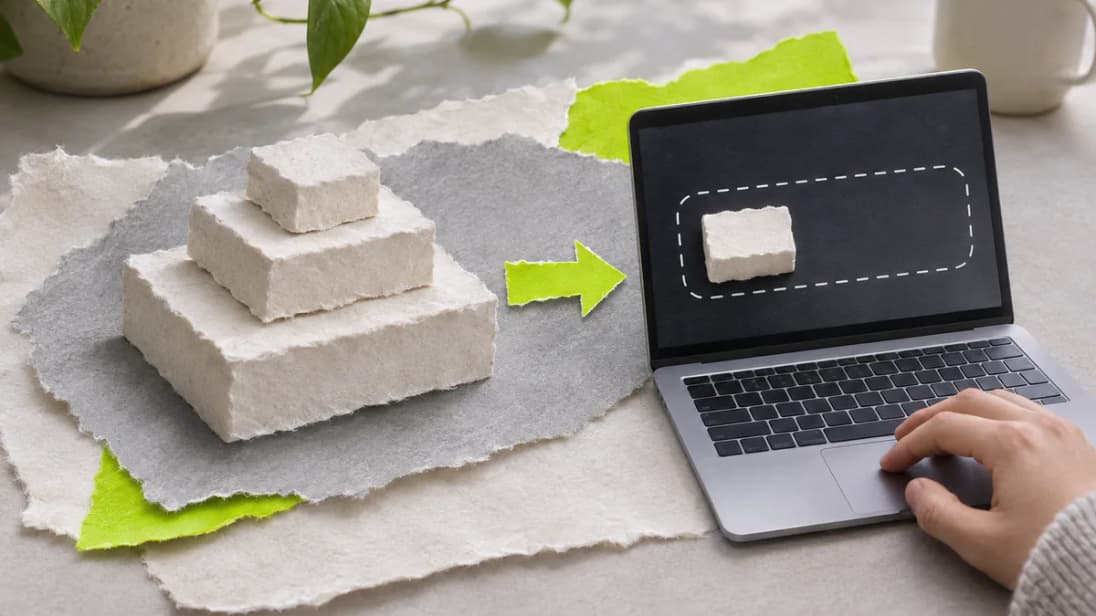
Install Atomic Chat
You can install Atomic Chat on Linux, macOS or Windows. Start with the installer for your system:
- Go to Atomic Chat's download page and choose the version for the operating system you use.
- Run the installer.
- Launch Atomic Chat.
Local chats need neither an account nor a subscription. Good. You go straight from launch to a conversation with a model on your own disk, with no sign-up form or plan in the way.
Download small, then chat
A model's file size and context window decide whether it fits on your machine, and its license and intended uses tell you what you're allowed and meant to do with it. Read all four before you download anything.
- Use your available memory to narrow the choice to a small or mid-sized text model with quantized weights, leaving memory to spare.
- Download it in Atomic Chat.
- Load the model once the download completes.
- Start a new chat and type your first prompt.
Prove it works offline
Disconnect everything and make Atomic Chat prove itself. With the model weights already downloaded:
- Disable Wi-Fi and disconnect your computer from all remaining networks.
- Exit the local chat and open it again.
- Choose your downloaded model.
- Type a prompt you haven't sent before.
A reply with every network down means the model is answering from your own hardware.
You can give an offline model newer information by adding material to the chat; a connected retrieval tool offers another way to bring it up to date.
Fix slow responses
Slow output and memory errors have separate fixes:
- Slow replies: supported GPU acceleration, fewer memory-heavy apps running alongside the model, a shorter prompt or a smaller quantized model.
- Out-of-memory errors: a reduced context window and a model that needs less memory.
CPU offloading lets Ollama shift some gpt-oss computation away from VRAM when there's too little of it available. Replies take longer with that work on the CPU.
Prefer Ollama or LM Studio?
Atomic Chat is one runner among several, and OpenAI's own guides for its gpt-oss models use Ollama and LM Studio.
Ollama
OpenAI's Ollama guide for gpt-oss covers offline chat with either gpt-oss-20b or gpt-oss-120b. After you install Ollama, the 20b model takes two commands:
- Pull the model with
ollama pull gpt-oss:20b. - Chat in the terminal with
ollama run gpt-oss:20b.
Ollama also has an app if you'd rather not chat in a terminal, and other software on your computer can reach the model through Ollama's local API at http://localhost:11434/v1.
LM Studio
LM Studio ships two engines: llama.cpp for GGUF-format models and Apple's MLX for Macs with Apple Silicon.
In LM Studio Bionic, select "Create Project" and give the project a name. To browse models, use the prompt box's "Choose a model" control, followed by "Get local models".
For a terminal chat, download the model with lms get openai/gpt-oss-20b, load it with lms load openai/gpt-oss-20b and start chatting with lms chat openai/gpt-oss-20b, as covered in OpenAI's LM Studio guide for gpt-oss. Applications using the OpenAI Python SDK can connect without an API key to LM Studio at http://localhost:1234/v1. For external tool access, gpt-oss uses MCP servers connected through LM Studio's MCP client.
Coding with Codex
To use Codex with its built-in Ollama or LM Studio provider, start it with --oss. Save oss_provider as "ollama" or "lmstudio" in your Codex configuration for a persistent default; use --local-provider for a single run. An unset provider causes codex exec to exit with an error, while the interactive CLI offers a provider choice.
Local doesn't mean unrestricted
Running a model on your own machine leaves it as restricted as it shipped, an odd surprise if you assumed local and uncensored came as a set.
Models billed as uncensored bring problems of their own. Behavior varies between releases, and their answers can be unsafe or misleading. Every local LLM can also invent details; compare important answers against the original material before relying on them.
Check the privacy boundaries
Local inference keeps the model's work on your device. Overall privacy also turns on the application you run it in, your operating system, the tools you connect and any network services you enable, so a local model covers only one part of the privacy story.
Codex, for example, sends OpenAI occasional small batches of anonymous data about usage and health by default. To stop its built-in statsig metrics exporter along with analytics, put enabled = false under [analytics] in its configuration. A custom OTLP metrics exporter requires otel.metrics_exporter = "none" as well. Every MCP server you hook up to LM Studio adds another tool to that picture.
For this walkthrough's Atomic Chat setup, keep optional cloud services switched off: running inference locally leaves privacy decisions in the rest of your setup, including the app, operating system and connected tools.
Behind this story
An expert in all things smart tech and an incredibly intelligent writer who can explain complicated technology to a wide audience, Tania is always up to date on the latest smart tech developments - whether it’s a product for home entertainment use or educational purposes, Tania can explain both the features and the implications, the advantages and the drawbacks, and the risks and rewards of smart technology.
All stories by Tania
Comments
Read next
More stories
Artificial Intelligence
We Need to Prioritize AI Talent Development

Artificial Intelligence
What does the Future Hold for Smart Speakers?

Artificial Intelligence
Can Artificial Intelligence & Robots fight the Cybercrime Epidemic?